
Introduction
Musical is a music studio you talk to. Ask for music or a change, and Musical does the work on real tracks. You keep what you like.
Three views
Every project opens in one of three views. Switch between them at the top, or with ⌘1 ⌘2 ⌘3.
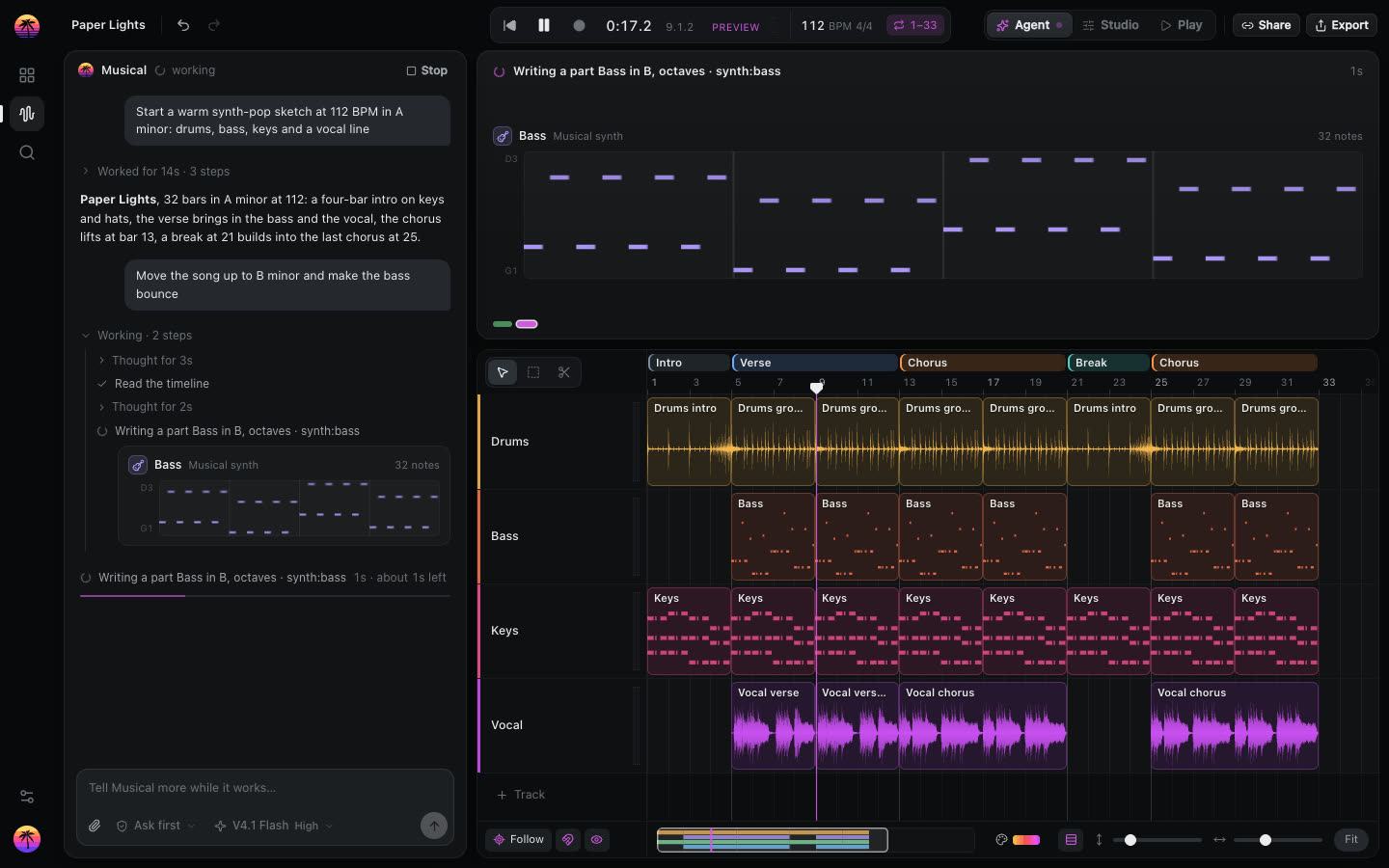
Agent
The conversation with Musical, and what it builds beside it as it works: the notes it writes, the parts it reads, the edits it makes.
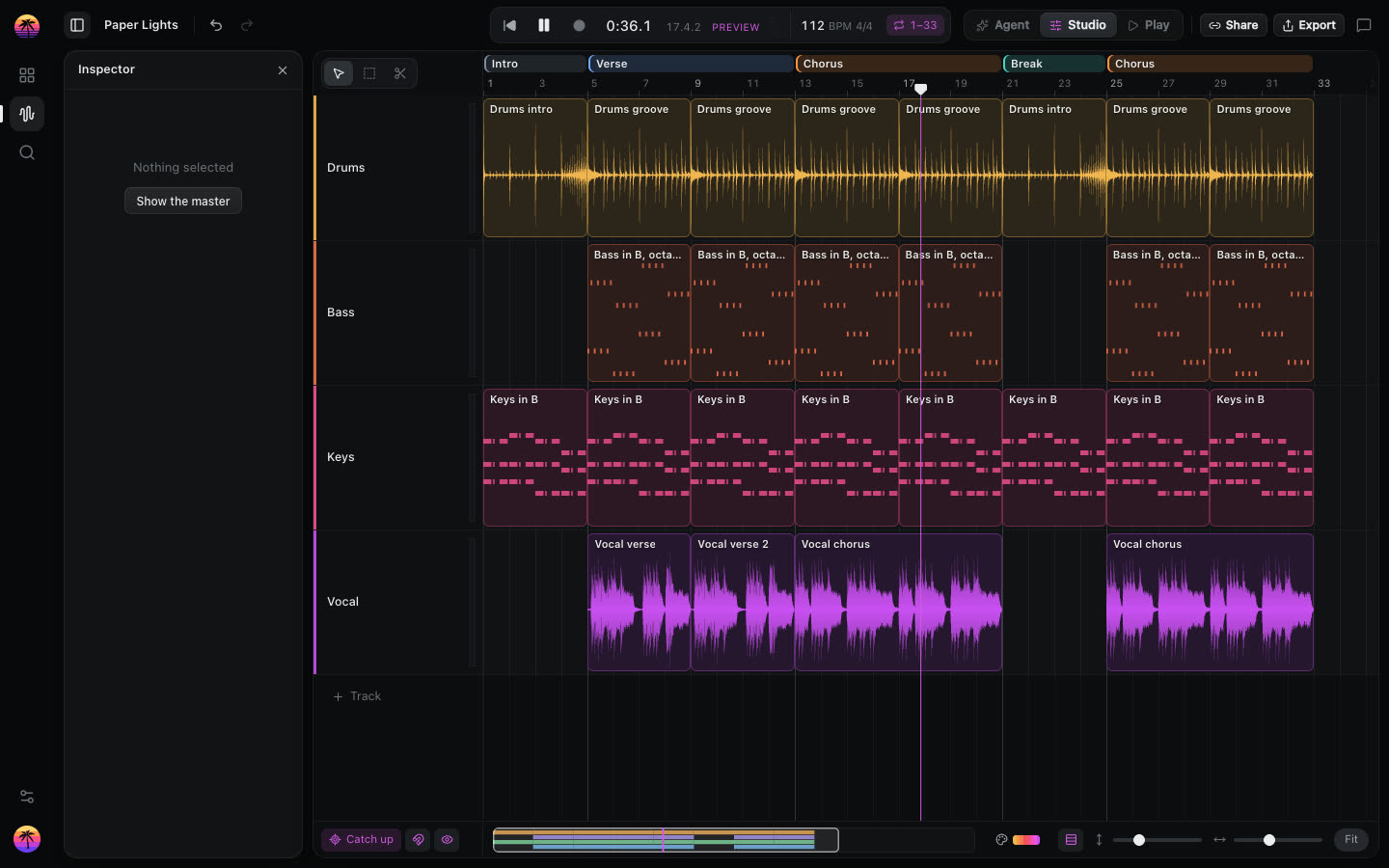
Studio
The tracks, to edit by hand. Drag to move a clip, drag its edges to trim, press S to split it under the pointer, double-click to open its notes. The inspector on the left shows the selected part's tempo, notes, effects and level.
Play
The same tracks, full width, each lit as it plays. Musical can show the drums it hears as their own lanes.
How a request goes
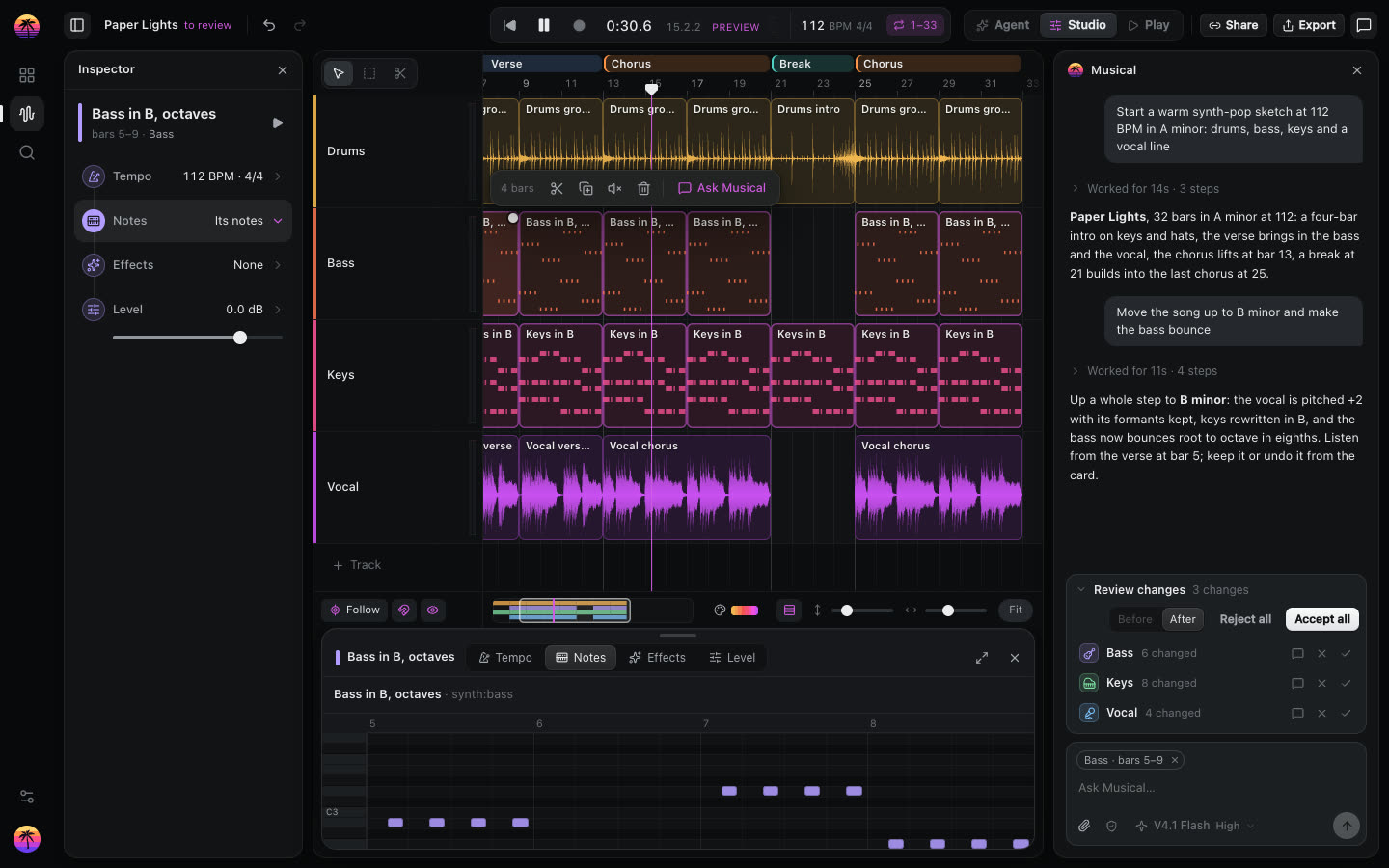
- Ask. Type what you want in the chat. To ask about part of the song, select clips or bars first and choose Ask Musical.
- Watch. Each step shows as it happens, drawn as music: the notes, the parts, the sections.
- Review. The changes wait in Review changes. Switch between Before and After, then keep them all, keep some, or reject them.
- Keep going. Each change you keep is a version. Undo with ⌘Z, or ask for something else.
Bring your music
Drop a song, a video or a MIDI file on the studio: MP3, WAV, FLAC, MP4 and MIDI all work. Musical splits a song into parts you can play with, and maps its sections, tempo and key.
Shortcuts
Space plays and pauses. ⌘K finds any command, or asks Musical. S splits. R records from your microphone. ⌘Z undoes.